Document Version: 1.0
Applies to: Serviceman App (Android/iOS)
Last Updated: July 2026
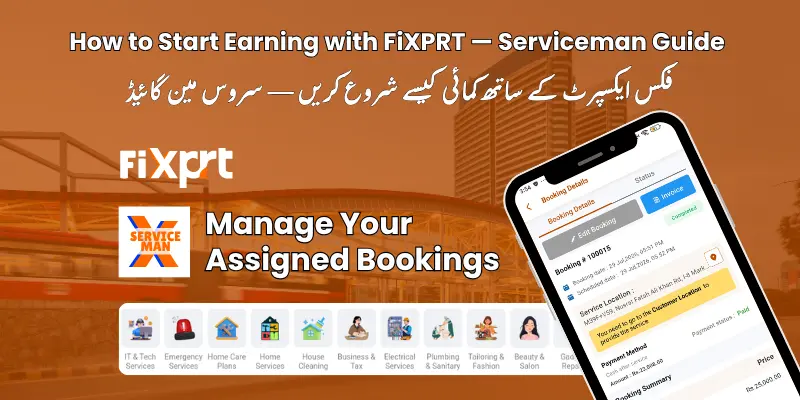
A Serviceman is the field worker who performs the actual service for the customer. You work under a Provider (a service business registered on FiXPRT). The provider finds customers and assigns jobs to you through the FiXPRT platform.
Your role in the marketplace:
Customer books a service → Provider accepts → Provider assigns you → You complete the job → Customer pays → You earnKey facts:
Get the FiXPRT Serviceman App from your app store:
You do not register yourself. Your provider creates your account:
Note: If you haven’t received your login details, contact your provider.
When a provider assigns a booking to you:
Every booking goes through these stages from your perspective:
Assigned → En Route → In Progress → Completed| Status | What It Means | What You Do |
|---|---|---|
| Assigned | The provider has assigned this job to you | Review details and prepare |
| En Route | You are traveling to the customer’s location | Tap “En Route” when you leave |
| In Progress | You have arrived and are doing the work | Tap “Start Service” when you arrive |
| Completed | The job is done and verified | Upload photos, enter OTP, tap “Complete” |
How to change a booking status:
When you finish the service, follow these steps carefully. This is the most important part of your job on the platform.
Step-by-step completion process:
1. Finish the service work
2. Take photo evidence of the completed work
3. Ask the customer for the OTP
4. Enter the OTP in the app
5. Tap “Complete”
6. Confirmation dialog appears
What happens after completion:
Important: All checkpoints (photos, OTP, confirmation, status update) must be completed for the booking to be marked complete. Missing any step means the booking stays open.
OTP (One-Time Password) is a 4-digit code that verifies the service was completed.
How OTP works:
Why OTP is required:
| Reason | Explanation |
|---|---|
| Proof of completion | Confirms the customer agrees the service is done |
| Payment release | Triggers payment processing for the provider |
| Fraud prevention | Prevents false completion claims |
| Dispute resolution | Provides audit trail for any issues |
Tip: If the customer hasn’t received their OTP, ask them to check their SMS inbox or request a resend from their app. If issues persist, contact support.
Before completing a booking, you must upload at least one photo showing the completed work.
Photo guidelines:
| Guideline | Details |
|---|---|
| Required | At least 1 photo per booking |
| Clear | Well-lit, in-focus image of the work area |
| Complete | Show the finished result |
| Timestamp | Added automatically by the app |
| Storage | Photos are stored securely on the platform |
How to upload photos:
Your earnings structure is determined by your provider. Unlike providers who track earnings on-platform, servicemen are typically paid by their provider through:
| Payment Method | Description |
|---|---|
| Salary | Fixed monthly or weekly pay by the provider |
| Per-job commission | You earn a percentage or fixed amount per completed booking |
| Mixed | Base salary + performance bonus |
Note: FiXPRT pays the provider, and the provider pays you. Your specific payment arrangement is between you and your provider.
You can track your work history in the Serviceman App:
| Factor | Impact |
|---|---|
| Completed bookings | More completions = more earnings (if per-job) |
| Customer ratings | Higher ratings may lead to more assignments |
| Response time | Faster service = more satisfied customers |
| Reliability | Completing all assigned jobs builds trust with your provider |
The Serviceman App includes a Chat feature for messaging:
Tip: Always be professional and polite in messages. Good communication leads to better ratings and more job assignments.
You will receive push notifications for:
| Feature | Where to Find It | What You Can Do |
|---|---|---|
| Dashboard | App home screen | View booking count, completed jobs, performance stats |
| Booking Requests | Bottom nav → Bookings | See all assigned bookings |
| Booking Details | Tap any booking | View customer info, service details, change status |
| Messages | Bottom nav → Chat | Chat with customers and your provider |
| Notifications | Top bell icon | View alerts and updates |
| Profile | Menu → Profile | Edit your info, dark mode toggle, view history |
| Blog | Menu → Blog | Read platform updates and tips |
| Language | Menu → Language | Switch app language |
| Support | Menu → Support | Get help |
Use the Dashboard to monitor:
| Term | Meaning |
|---|---|
| Booking | A service order placed by a customer and assigned to you |
| Provider | The business/employer you work for on FiXPRT |
| Serviceman | Field worker who performs the service (you) |
| CAS | Cash After Service — customer pays cash at completion |
| OTP | One-Time Password — 4-digit code confirming completion |
| En Route | Status meaning you are traveling to the customer |
| In Progress | Status meaning you are working on the service |
| Completed | Status meaning the job is finished and verified |
| Zone | Geographic area where you provide services |
| Evidence Photo | Photo uploaded as proof of completed work |
| Push Notification | Alert sent to your phone from the app |
| Rating | Customer’s feedback score (1-5 stars) |
Need help? Contact support through the Serviceman App: Menu → Support
If you have questions about your pay, contact your provider directly.Document Version 1.0 — July 2026




Book and manage your services anytime, anywhere.