Document Version: 1.0
Applies to: Partner App (Android/iOS) and Provider Dashboard
Last Updated: July 2026
FiXPRT is an on-demand services marketplace that connects customers with verified service providers. Customers in Pakistan book services through the FiXPRT User App, and providers like you fulfill those bookings through the FiXPRT Partner App.
How the marketplace works:
Customer requests a service → Provider accepts → Service delivered → Payment processed → Provider earnsKey facts:
Get the FiXPRT Partner App from your app store:
After submitting, you will be asked to upload:
| Document | Purpose |
|---|---|
| CNIC / National ID | Identity verification |
| Business license (if applicable) | Commercial registration |
| Professional certifications | Qualification proof |
| Profile photo | Provider identification |
Upload clear, legible copies. The admin team reviews these documents as part of the approval process.
You Register → Admin Reviews (1-3 business days) → Approved → Start Accepting BookingsStatuses you may see:
| Status | Meaning | What to Do |
|---|---|---|
| Pending Review | Admin hasn’t reviewed yet | Wait |
| Approved | You can start accepting bookings | Start now! |
| Denied | Application was not approved | Check the reason provided and resubmit |
| Suspended | Account temporarily blocked | Contact support |
Note: You will receive an email notification when your registration is approved.
Once approved, set up which services you offer:
You will only receive booking requests for services you have subscribed to.
Tip: Starting with one zone helps you build a strong reputation. You can expand later as an Official Provider.
A complete profile builds trust with customers:
When a customer places a service order, FiXPRT sends it to available providers in that zone who offer that service. You’ll receive:
When a booking request appears:
Important: Accept only bookings you can fulfil. Multiple ignored requests may affect your visibility.
Pending → Accepted → Ongoing → Completed| Status | Action Required |
|---|---|
| Pending | Waiting for provider to accept |
| Accepted | You accepted — prepare for the service |
| Ongoing | Service is in progress (started by you) |
| Completed | Service delivered — OTP verified by customer |
When you finish the service:
OTP is mandatory. Without it, the booking cannot be marked complete and earnings will not be released.
If you have staff (servicemen):
Your earnings are tracked through several account fields:
| Field | What It Means |
|---|---|
| Total Earning | All money earned from completed bookings (before commission) |
| Received Balance | Net earnings after commission — available for withdrawal |
| Withdrawable Balance | Amount you can withdraw right now |
| Total Withdrawn | How much you have withdrawn to date |
| Account Payable | Commission owed to FiXPRT (for Cash After Service payments) |
| Account Receivable | Amount FiXPRT owes you (for digital payments) |
Open the Dashboard on the Partner App to see:
A customer books a PKR 5,000 cleaning service. Your commission rate is 15%.
Booking Amount:              PKR 5,000
Commission (15%):           -PKR   750
Your Net Earnings:           PKR 4,250
---------------------------------------
Received Balance:           +PKR 4,250
If the customer pays Cash After Service:
If the customer pays Digitally (card/wallet/bank):
Your true available balance = received_balance - account_payable - total_withdrawn + account_receivableFiXPRT charges a percentage commission on each completed booking. The percentage depends on:
| Scenario | Commission Rate |
|---|---|
| Standard booking, no custom rate | Platform default (set by FiXPRT admin) |
| Custom rate negotiated with FiXPRT | Your agreed percentage |
| Booking through a subscription plan | 0% (no commission) |
When you or FiXPRT runs a promotion (discounts, coupons, campaigns), the cost is shared:
If a PKR 500 discount is applied to a booking:
  - FiXPRT bears: a percentage (e.g., 50% = PKR 250)
  - You bear: the remaining percentage (e.g., 50% = PKR 250)
This split is pre-configured and shown before you accept a booking.
If a customer has a subscription (Pro Membership):
You Request → Admin Reviews → Approved → Money Transferred (1-3 business days)| Status | What It Means |
|---|---|
| Pending | Request submitted, awaiting admin review |
| Approved | Admin approved — transfer in progress |
| Denied | Request denied — balance restored to your account |
| Completed | Money has been sent to your account |
Before your first withdrawal:
| Feature | Where to Find It | What You Can Do |
|---|---|---|
| Dashboard | App home screen | View earnings, booking counts, serviceman status, pending requests |
| Booking Requests | Bottom nav → Booking Requests | Accept or ignore incoming booking requests |
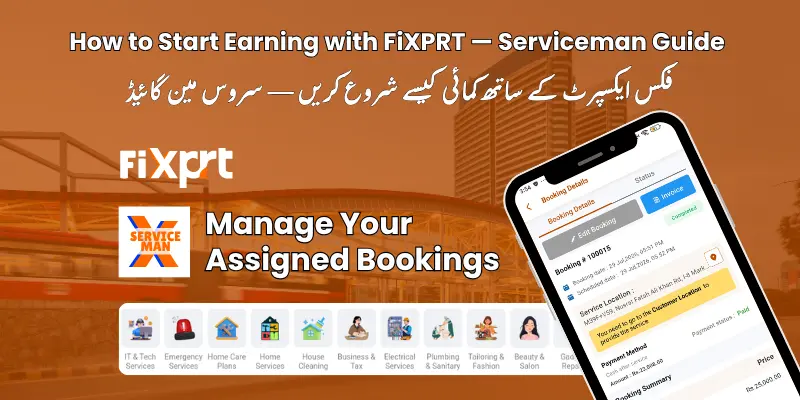
| My Bookings | Bottom nav → Bookings | View upcoming, ongoing, and completed bookings |
| Earnings | Dashboard → Earnings section | See today’s, weekly, monthly, and all-time earnings |
| Payment Info | Menu → Payment Information | View balances, withdraw money, manage bank details |
| Servicemen | Menu → Serviceman | Add, edit, or assign servicemen to bookings |
| Reports | Menu → Reporting | Generate transaction and booking reports |
| Profile | Menu → Profile | Edit your business information and services |
| Messages | Bottom nav → Chat | Chat with customers and servicemen |
| Reviews | Menu → Reviews | View customer ratings and feedback |
FiXPRT awards a Verified Badge to top providers who meet these criteria:
| Requirement | Threshold |
|---|---|
| Completed orders | 1,000+ |
| Completion rate | 90%+ |
| Account age | 24 months+ |
| Average rating | 4.5+ |
Benefits of verification:
A subscription (Business Plan) offers:
Use the Reports feature to:
| Term | Meaning |
|---|---|
| Booking | A service order placed by a customer |
| Commission | FiXPRT’s fee as a percentage of each booking |
| CAS | Cash After Service — customer pays cash at completion |
| Digital Payment | Customer pays via card, wallet, or bank transfer through the app |
| OTP | One-Time Password — used to verify booking completion |
| Provider | Service professional/business offering services on FiXPRT |
| Serviceman | Staff member assigned to perform the service |
| Zone | Geographic area where you provide services |
| Received Balance | Net earnings available for withdrawal |
| Account Payable | Commission you owe FiXPRT (from CAS bookings) |
| Account Receivable | Earnings FiXPRT owes you (from digital payment bookings) |
| Verified Provider | Top-rated provider with a badge of trust |
| Pro Membership | Customer subscription plan — bookings earn 0% commission |
| Business Plan | Provider subscription with feature access and commission benefits |
| Withdrawal | Transferring your earnings from FiXPRT to your bank account |
Need help? Contact FiXPRT support through the Partner App: Menu → Support
Document Version 1.0 — July 2026




Book and manage your services anytime, anywhere.